10 Best Free Screenshot App for Android for 2026
Find the best free screenshot app for Android. We review 10 top apps for scrolling captures, editing, and video, with tips on privacy and setup.
On this page
- 1. Screen Master Screenshot and Photo Markup
- Best when annotation is the job
- 2. Screenshot Easy
- Best for configurable capture workflows
- 3. Screenshot Touch
- Good when screenshots and recordings belong together
- 4. AZ Screen Recorder
- Best for creators and demo workflows
- 5. Screenshot by Splend Apps
- Best for minimal overhead
- 6. Screenshot Quick
- Best for speed-first capture
- 7. Screenshot and Screen Recorder by MobileIdea Studio
- Useful for general-purpose capture
- 8. Screenshot Tile No Root by cvzi
- Best privacy-conscious workflow on the list
- 9. Super Screenshot
- Best for simple edits on older devices
- 10. Stitch Photos Long Screenshot
- Best companion app for long captures
- Top 10 Free Android Screenshot Apps Comparison
- From Capture to Conversion Creating Professional App Store Assets
You press the buttons, the screen flashes, and the image lands in your gallery. For one-off captures, Android's built-in screenshot tool is fine. The problem starts right after that. You need a full conversation, not just the visible screen. You need arrows and blur boxes for a bug report. You need to capture a settings flow, trim it fast, and send it to a teammate before the context disappears.
That's where a free screenshot app for android starts to matter. The value isn't only capture. It's trigger options, scrolling support, quick markup, file handling, and how much friction the app adds after the shot is taken. Some apps are built for speed. Some are better for annotation. A few are really screen recorders that happen to include screenshots, which can be useful if you switch between stills and walkthrough videos.
There's also a trust question that a lot of roundup posts skip. Screenshot apps often ask for overlay, accessibility, notification, or media projection permissions. Those requests can be reasonable for the feature set, but you should know why an app asks for them and whether that trade-off makes sense for work screens, banking captures, or client material.
Android screenshot tools also changed a lot over time. By the mid-2010s, free apps like Screenshot by Splend Apps on Google Play and similar utilities were already pushing beyond hardware-button captures into no-root capture, in-app management, editing, and sharing. That basic shift set up the much broader app category you see now.
1. Screen Master Screenshot and Photo Markup#
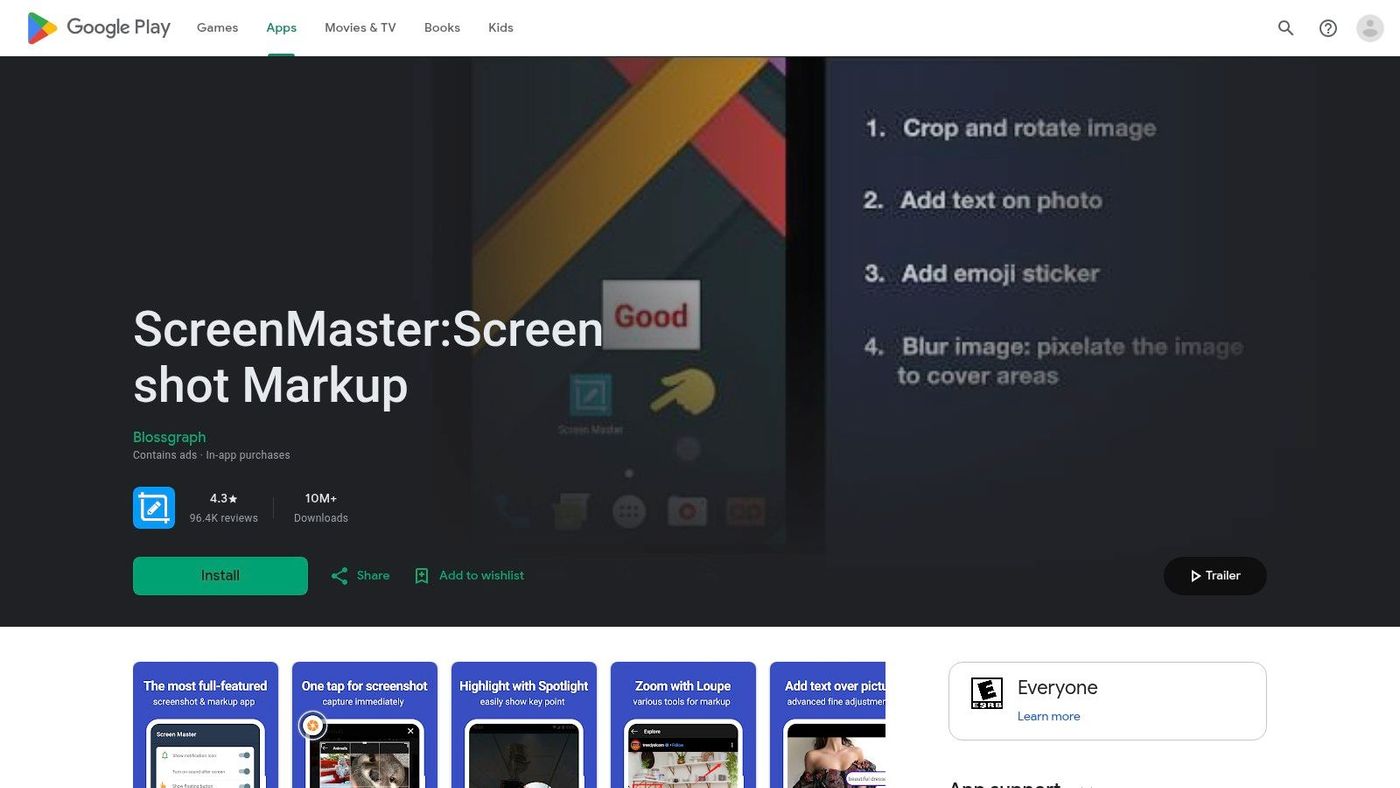
Screen Master is the app I'd hand to someone who says, “I don't just need the screenshot. I need to explain something with it.” The capture part is solid, but the markup layer is the main reason to install it. Floating button, notification trigger, and shake capture cover most use cases without forcing you into one workflow.
Its long screenshot mode is also useful when Android's native scrolling capture fails in a third-party app. That matters when you're documenting chat logs, order details, or app flows that don't expose a clean native long-shot option.
Best when annotation is the job#
Screen Master works well for teams sending visual feedback. Arrows, boxes, text, crop, blur, and pixelation are the difference between “there's a bug somewhere on this screen” and “tap target breaks after this state change.” For QA, support, and product reviews, that time savings is real even if it's hard to measure cleanly.
A few practical trade-offs stand out:
- Best strength: Markup is stronger than what many simple screenshot tools offer.
- Real limitation: Scrolling capture still depends on the target app behaving well with accessibility-based capture.
- Workflow fit: It's better for review and communication than for polished marketing layouts.
Practical rule: If you're sharing captures outside your immediate team, use blur or pixelate before you crop. People often crop first and miss usernames, tabs, or notification content at the top.
You can get the app from Screen Master on Google Play.
If those marked-up screenshots are later turning into promo assets, that's a different workflow. For framing plain captures into presentation-ready visuals, see these mobile app mockup examples.
2. Screenshot Easy#
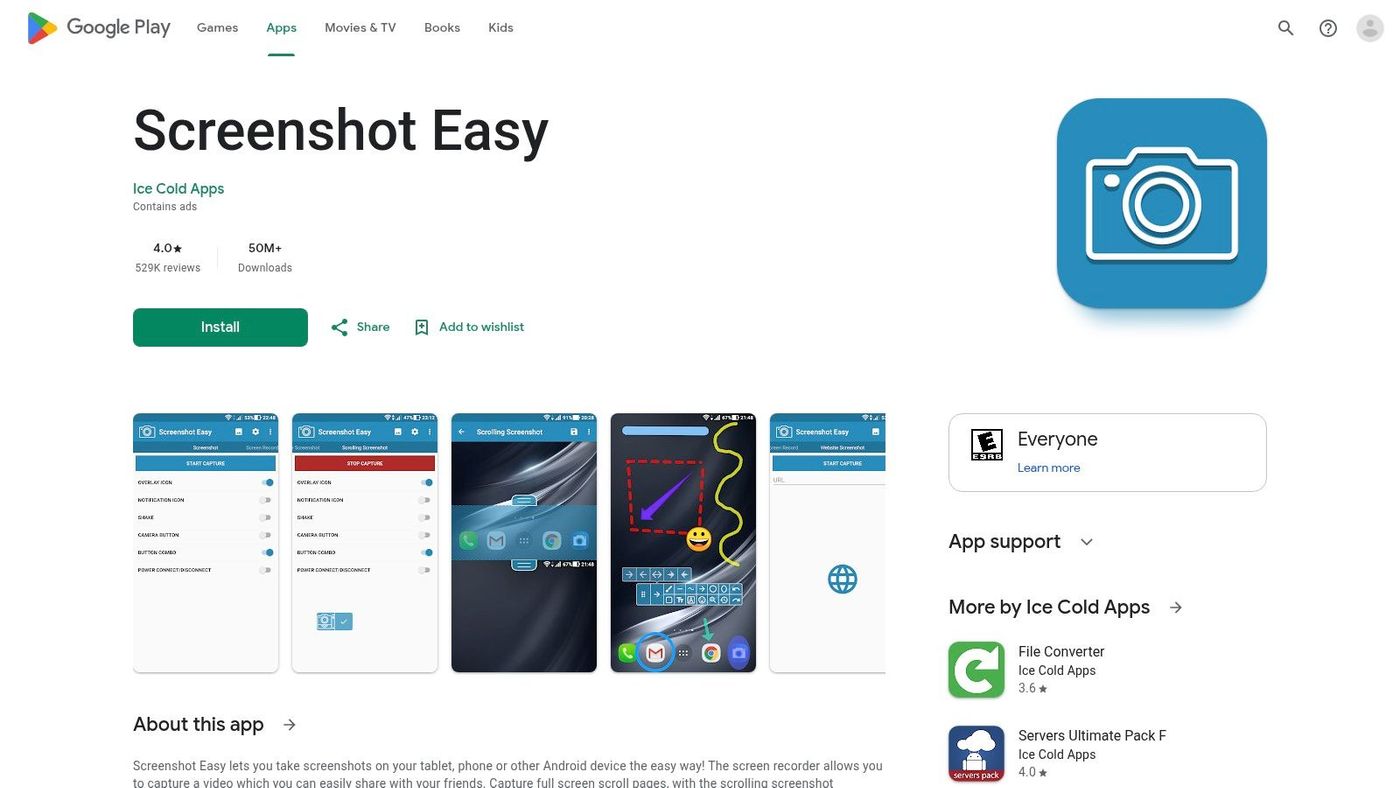
Screenshot Easy has been around long enough that its strengths are obvious the minute you open it. It gives you lots of trigger choices and keeps the post-capture flow simple. Overlay, widget, hardware-trigger support, shake, and notification capture mean you can tune it around how you already use your phone instead of adapting to the app.
That flexibility matters more than people think. If you take screenshots while commuting, testing, gaming, or demoing on a device stand, the “best” trigger changes fast.
Best for configurable capture workflows#
Among free Android screenshot utilities, one of the better documented capability bundles is full workflow support instead of capture alone. Screenshot Easy's Google Play listing explicitly highlights scrolling screenshots, website capture, editing, sharing, and screen recording. That's useful if your bottleneck is collecting and moving assets quickly, not just taking a single image.
The downside is that the app can feel busy. If you want a quiet, minimal tool, this isn't it. If you want options and don't mind an older-feeling interface, it's still one of the more practical picks.
- Use it for: Capturing app screens, long pages, and quick share-outs to teammates.
- Skip it if: You want polished markup or a privacy-first pitch from the product itself.
- Watch for: Advanced features that may not be fully open in the free tier.
There's also a broader issue with apps in this category. Google Play's data safety framework exists because apps can collect and share data, yet many screenshot-app roundups never compare trust and permissions directly. With tools like Screenshot Easy, the key question isn't only features. It's whether you're comfortable granting the permissions required for your particular use case.
You can install it via Screenshot Easy on Google Play.
If screenshots keep disappearing into random folders, this guide on where screenshots are stored on Android helps clean up that mess.
3. Screenshot Touch#
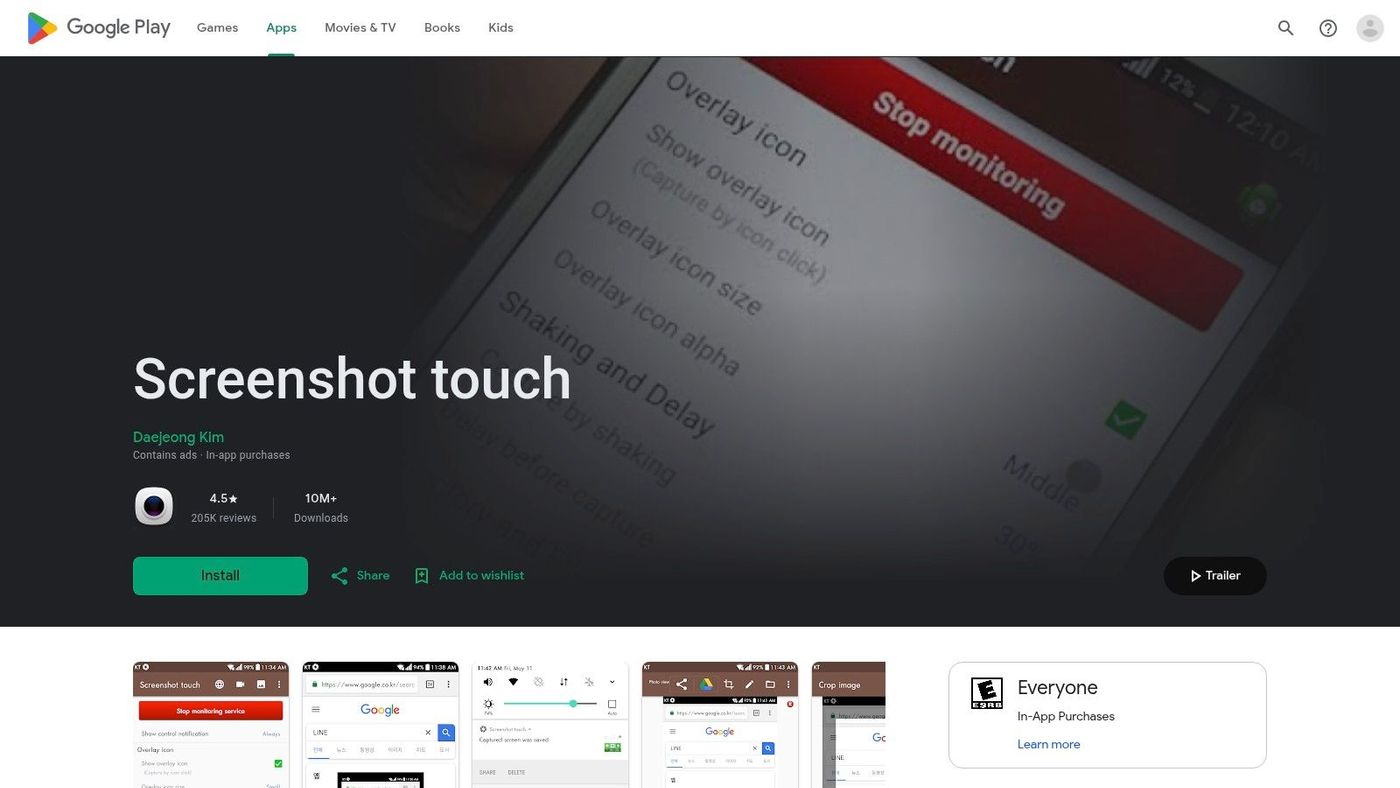
Some apps try to be screenshot tools with a little recording added on. Screenshot Touch feels more balanced than that. It handles still captures and screen recording in one place, which is handy if your day jumps between static evidence and short walkthrough clips.
That mix is especially useful for developers and support teams. A screenshot can show where something broke. A recording can show how to reproduce it.
Good when screenshots and recordings belong together#
The documented feature set is broader than many users expect from a free utility. Screenshot Touch coverage on Softonic describes multiple triggers like floating icon, notification area, and shake gesture, along with image stitching, PDF conversion, OCR, and annotation tools. That makes it one of the more workflow-heavy options in this category.
In practice, I'd use it when one app needs to handle evidence collection from start to finish. Capture the issue. Record the reproduction steps. Crop and annotate. Save to a dedicated folder.
For bug triage, paired screenshot and recording tools beat screenshot-only apps. Teams lose less context when they can attach both formats from the same moment.
The trade-off is familiar. The more capture methods and media features an app adds, the more sensitive the permission conversation becomes. Overlay and recording permissions can be reasonable, but you should decide based on what's on your screen and who owns that data.
You can download it from Screenshot Touch on Google Play.
4. AZ Screen Recorder#
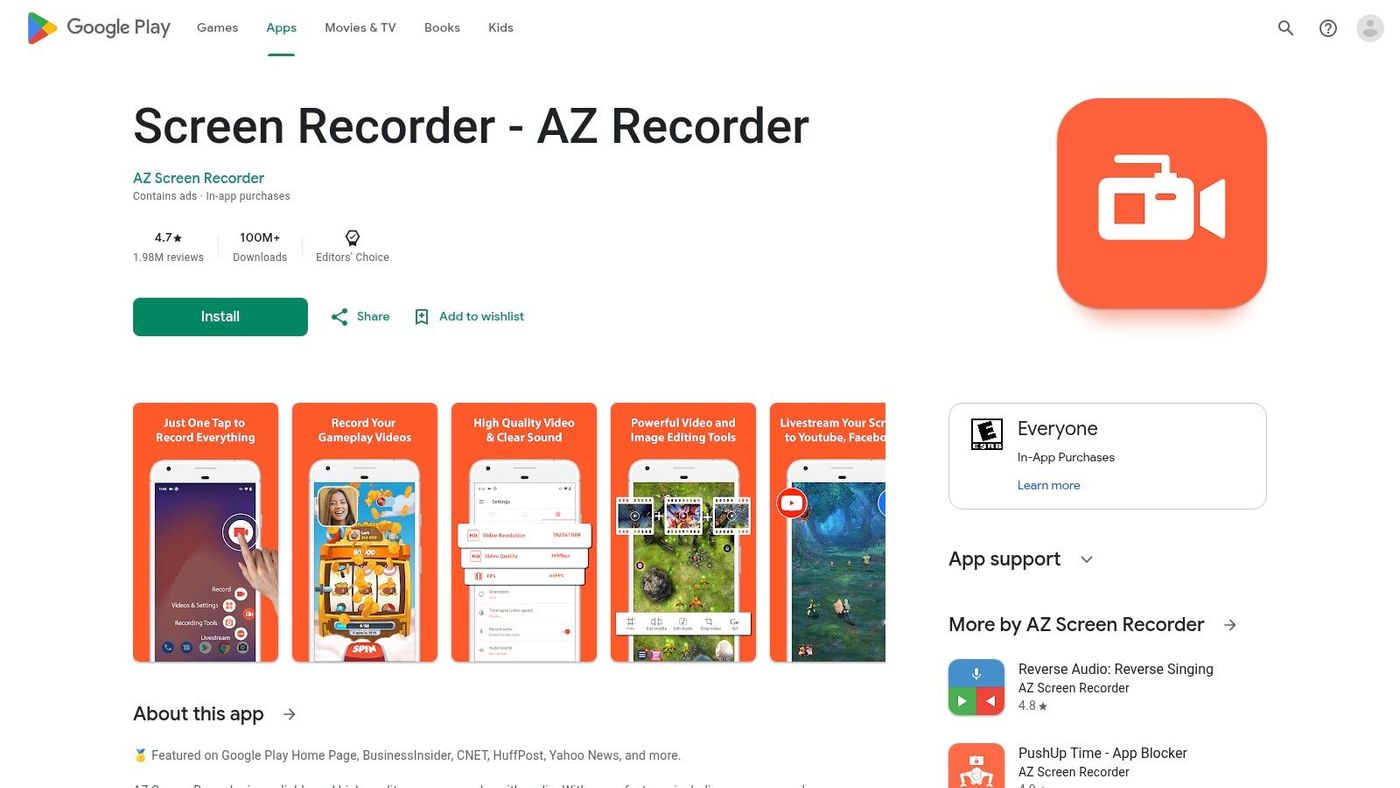
AZ Screen Recorder is on this list for a simple reason. A lot of people looking for a free screenshot app for android don't only need screenshots. They need clips for onboarding, bug reproduction, support replies, or social previews. AZ starts from recording and adds screenshot capture, not the other way around.
That means it's heavier than the pure screenshot tools above. But if you switch constantly between stills and video, that extra weight can be worth it.
Best for creators and demo workflows#
The one-tap controls are the main appeal. You can move between record, pause, stop, and screenshot without juggling different apps. For app demos or feature explainers, that reduces interruptions and keeps the flow more natural.
Its editor is also fine for quick cleanup, though I wouldn't rely on it for serious image markup or final promotional design. Think of it as a production utility, not a finishing tool.
- Use it for: Walkthroughs, how-to clips, app demos, and still captures from the same session.
- Less ideal for: Fast annotation-heavy QA work.
- Main trade-off: More features means a bigger interface footprint.
You can grab it from AZ Screen Recorder on Google Play.
If you're taking screenshots for a store listing rather than a support ticket, a generator built for polished layouts is a better next step than any recorder. This app store screenshot generator shows what that workflow looks like.
5. Screenshot by Splend Apps#
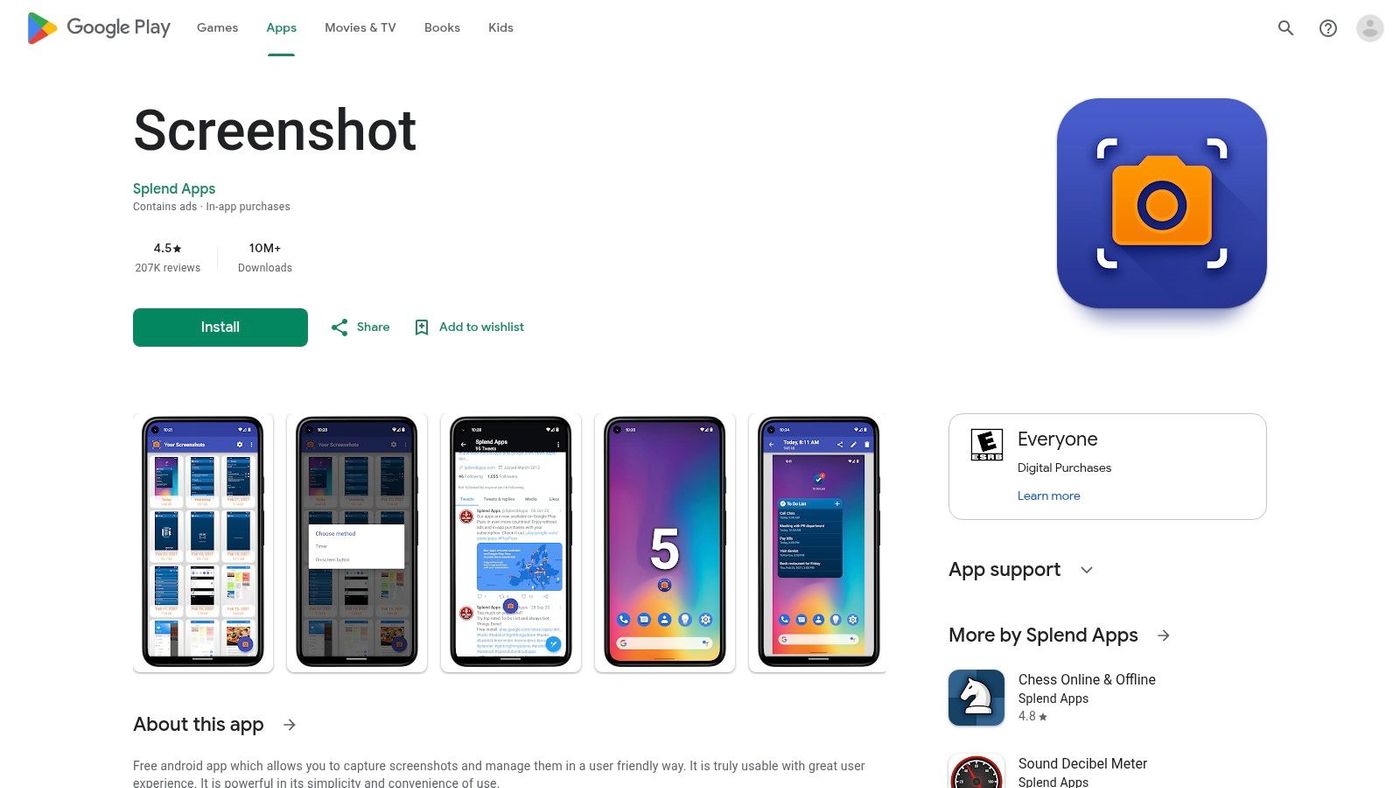
Not everyone needs OCR, stitching, or recording. Sometimes the right app is the one that gets out of the way. Screenshot by Splend Apps fits that role well. It focuses on simple no-root capture, a small learning curve, and easy sharing.
That kind of restraint is useful on older phones or on devices where you don't want another busy utility running all the time.
Best for minimal overhead#
A lot of free screenshot apps grew out of the same shift in Android utility design. The Screenshot by Splend Apps listing on Google Play presents it as a free Android app with standard screenshot triggers, an on-screen shutter button, and no root required for core use. That captures the historical move from simple hardware-button capture to feature-rich free utilities that handle capture and sharing in one place.
What it doesn't try to do is just as important. The editor is basic. Power users may outgrow it quickly. But for students, parents, casual Android users, or anyone who just wants a clean utility, that simplicity is the point.
- Strong fit: Quick screenshots, basic organization, immediate sharing.
- Weak fit: Detailed redaction, long documentation threads, polished annotations.
- Why pick it: Lower friction than all-in-one tools.
If native screenshots feel clumsy and feature-heavy apps feel excessive, this is the middle ground.
6. Screenshot Quick#
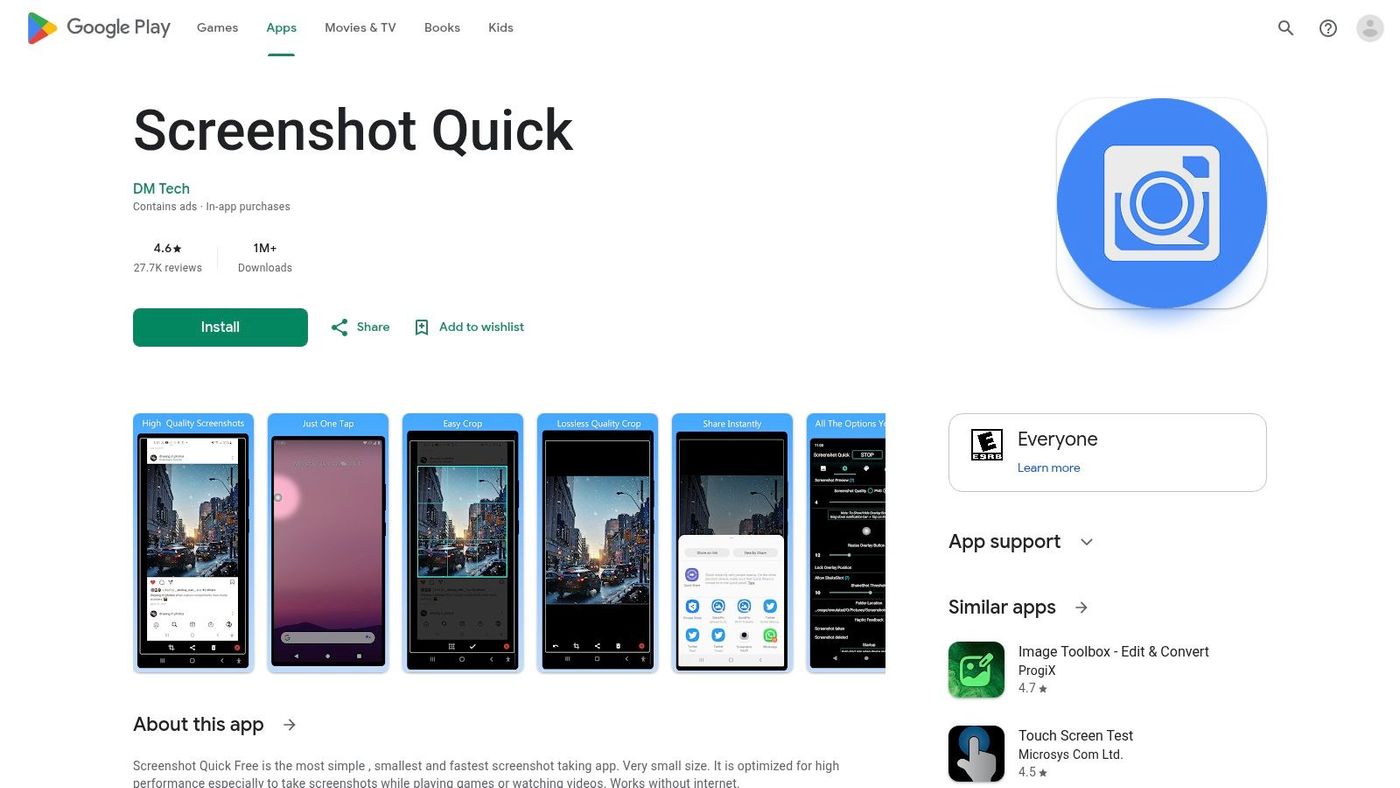
Screenshot Quick is for people who care about latency more than features. If you take lots of captures while scrolling, comparing products, or moving through game screens, speed matters more than decorative editing tools. This app leans into that.
Its appeal is straightforward. Fast trigger, instant preview, quick crop, done.
Best for speed-first capture#
This is the type of app I'd use for temporary screenshots. Price comparisons, maps, confirmation pages, reference images, or snippets you'll send once and delete. The option to exclude status and navigation bars is more useful than it sounds, especially when you want cleaner reference shots without manually cropping every image.
The weakness is obvious too. Once the image is captured, the toolset doesn't go far. If you need arrows, text layers, or privacy redaction, you'll hit the ceiling quickly.
A fast screenshot app saves time only if it also saves taps after capture. Instant crop matters more in daily use than a long features list you never open.
You can install it via Screenshot Quick on Google Play.
7. Screenshot and Screen Recorder by MobileIdea Studio#
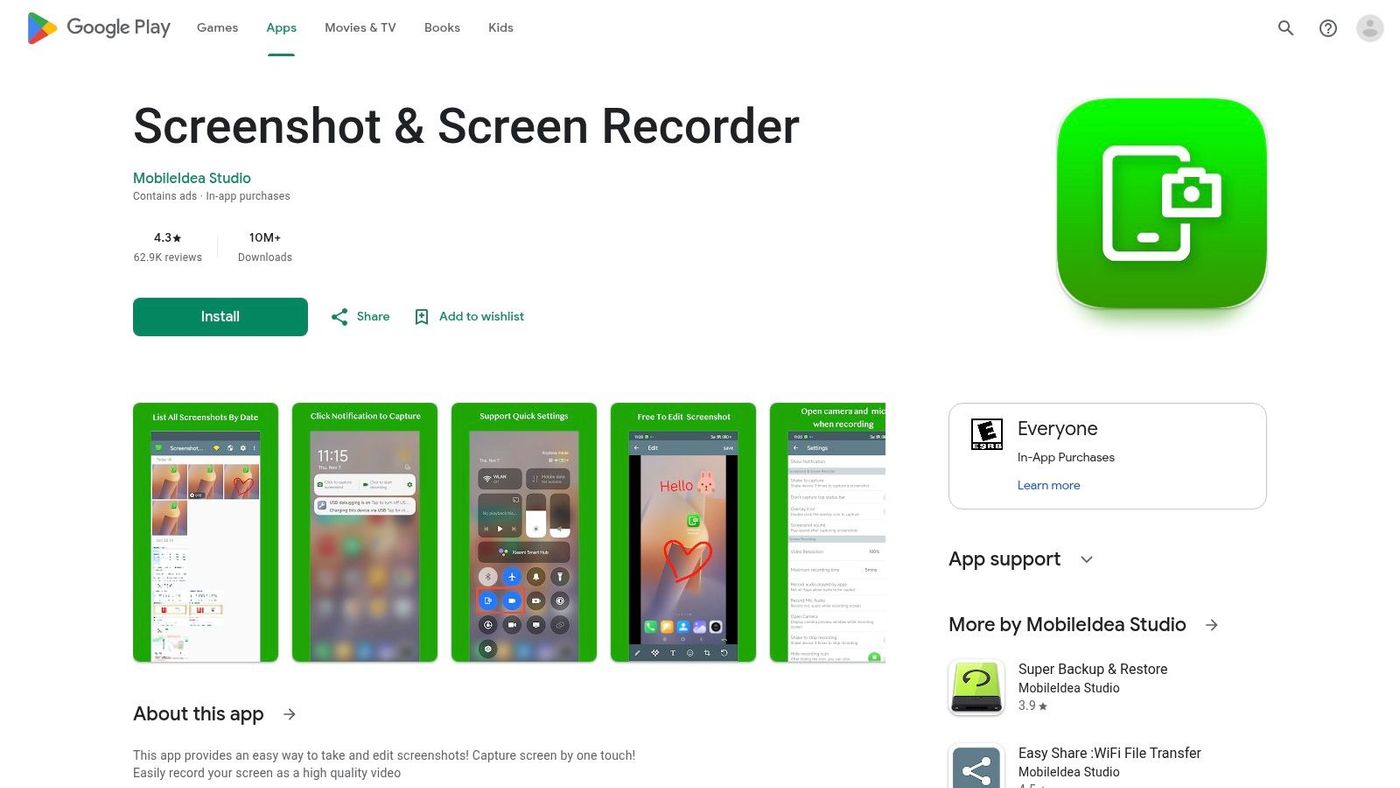
MobileIdea Studio's app sits in the practical middle of the category. It's not the cleanest specialist for screenshots, and it's not the most advanced recorder. What it does offer is one app for two common jobs with a built-in history browser and lightweight editing.
That's useful on phones where native screen recording is missing, awkward, or buried.
Useful for general-purpose capture#
If you help friends or customers troubleshoot problems, this kind of app makes sense. You can grab a screenshot, mark a field, then switch to a recording when a still image stops being enough. The gallery history also helps when people forget where a capture went after they took it.
The drawback is polish. These combined tools often leave persistent interface elements around longer than ideal, and the editing layer tends to be basic. So it works best when “good enough right now” matters more than refinement.
- Choose it when: You want one utility for screenshots and recordings.
- Avoid it when: You already have a good native recorder and only need premium screenshot markup.
- Best audience: Support, internal demos, and device owners with limited native tools.
You can find it on Screenshot and Screen Recorder by MobileIdea Studio on Google Play.
8. Screenshot Tile No Root by cvzi#
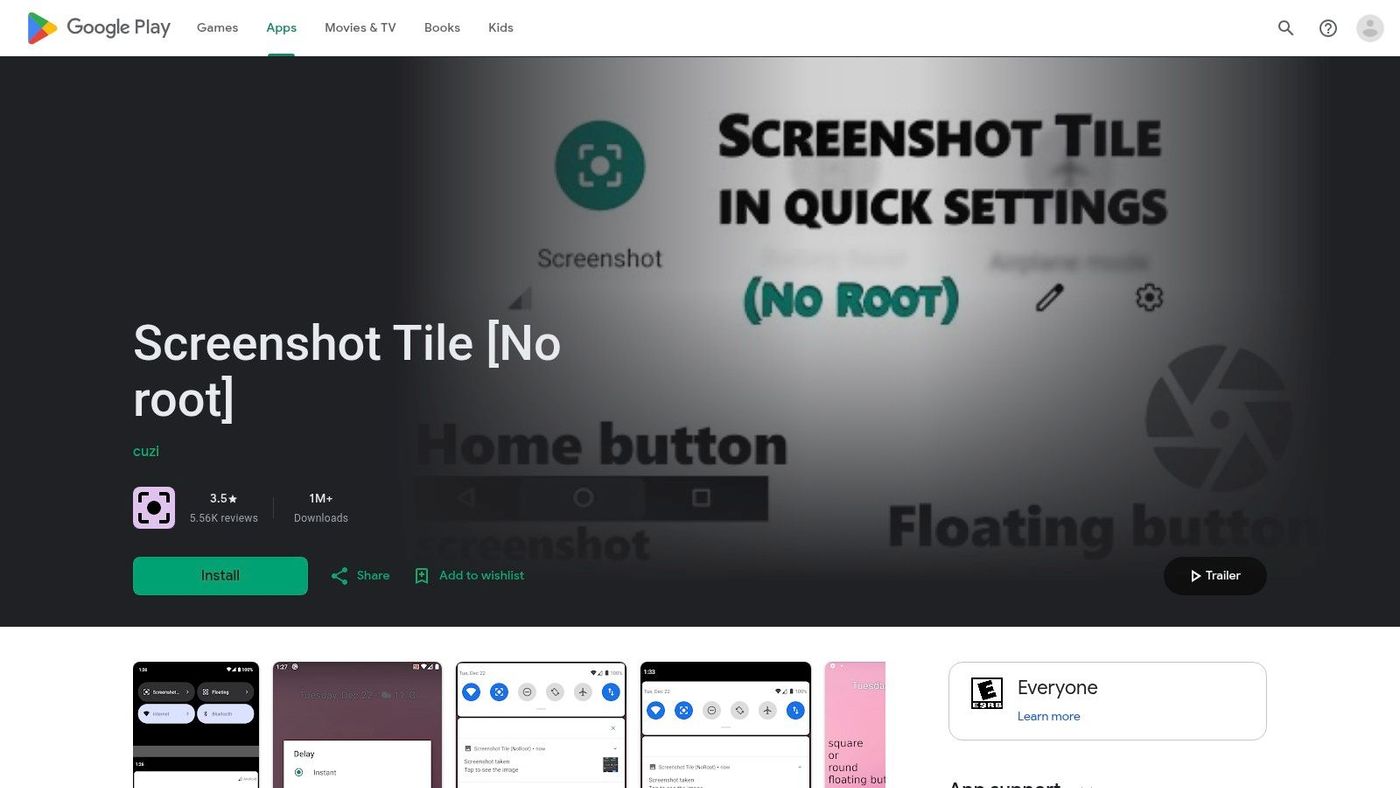
This is the most system-like option on the list. Screenshot Tile adds a Quick Settings tile so taking a screenshot feels like a native shortcut instead of a separate app workflow. If you hate floating bubbles and persistent overlays, this is probably the one to try first.
That small design choice changes the whole feel of the app. It stays out of your way.
Best privacy-conscious workflow on the list#
There's an underserved question in this category: which screenshot app is trustworthy enough for work or sensitive captures? Many listings focus on feature checklists and say little about whether data stays local, what permissions are required, or whether cloud behavior is involved. That gap matters because screenshot tools can request sensitive system access.
Screenshot Tile stands out because its open-source angle and simple system integration are easier to reason about than ad-heavy black-box utilities. It still requires capture permissions, of course, but its workflow is cleaner and easier to audit conceptually than apps built around aggressive overlays and broad extras.
- Best strength: Native-feeling Quick Settings capture.
- Main limitation: No serious editor and no long-shot workflow.
- Who should use it: Users who value a cleaner, more privacy-minded setup over features.
You can get it from Screenshot Tile No Root by cvzi on Google Play.
9. Super Screenshot#
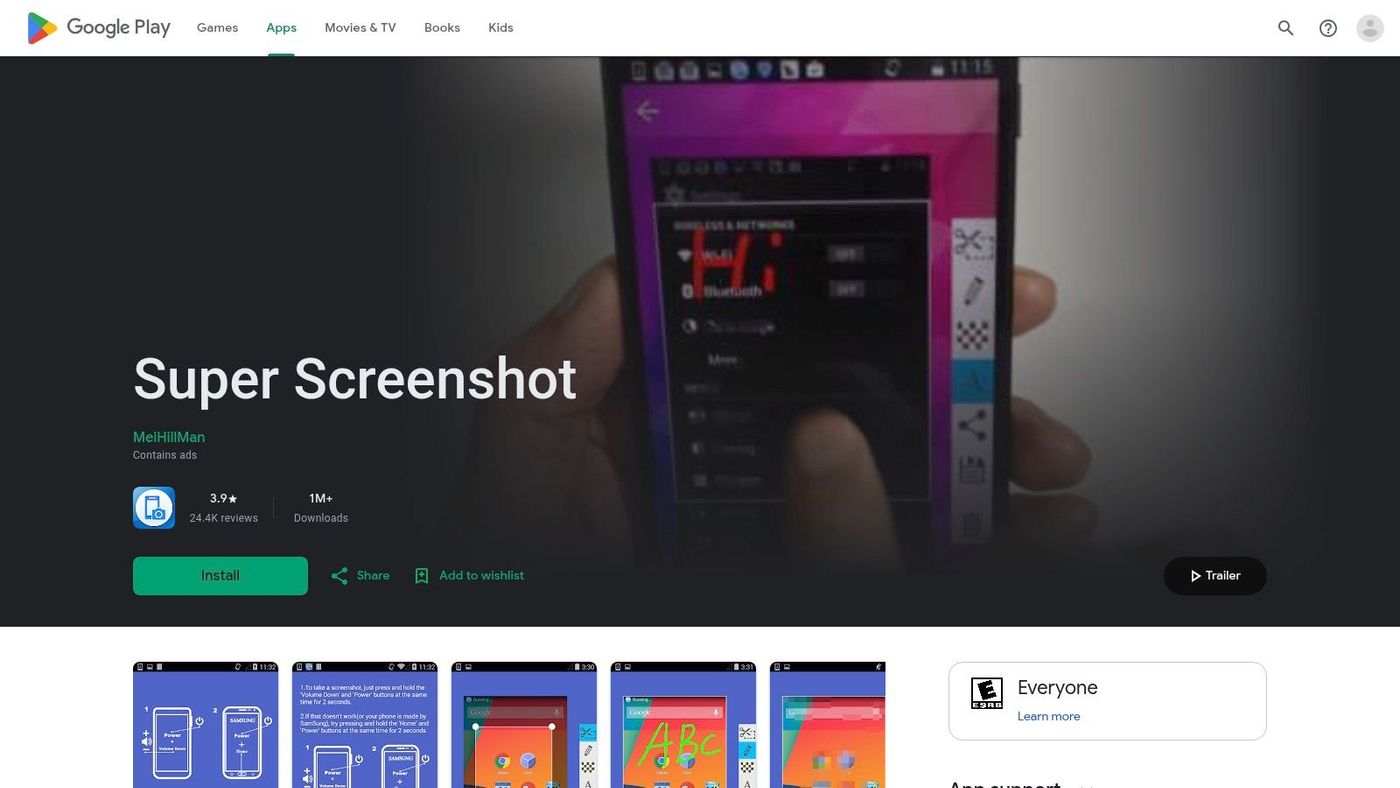
Super Screenshot feels like an older style Android utility, and that can be either a positive or a negative depending on what you want. It captures, lets you scribble, resize, add text, and save the result without trying to become a whole media toolkit.
That makes it easier to recommend for occasional edits than for high-volume daily use.
Best for simple edits on older devices#
If your phone is older, or you're helping someone who doesn't want to learn a more feature-dense interface, Super Screenshot has a low barrier to entry. The in-app doodle and text tools are enough for basic callouts, and saving to internal storage or SD-style workflows can still matter for users who move files manually.
The downside is that it doesn't feel modern. You won't get the better long-capture and workflow tools that newer apps lean on, and ad load may bother you if you use it often.
Keep an older utility app only if it still matches your phone and your habits. Nostalgia isn't a workflow advantage.
You can install it from Super Screenshot on Google Play.
10. Stitch Photos Long Screenshot#
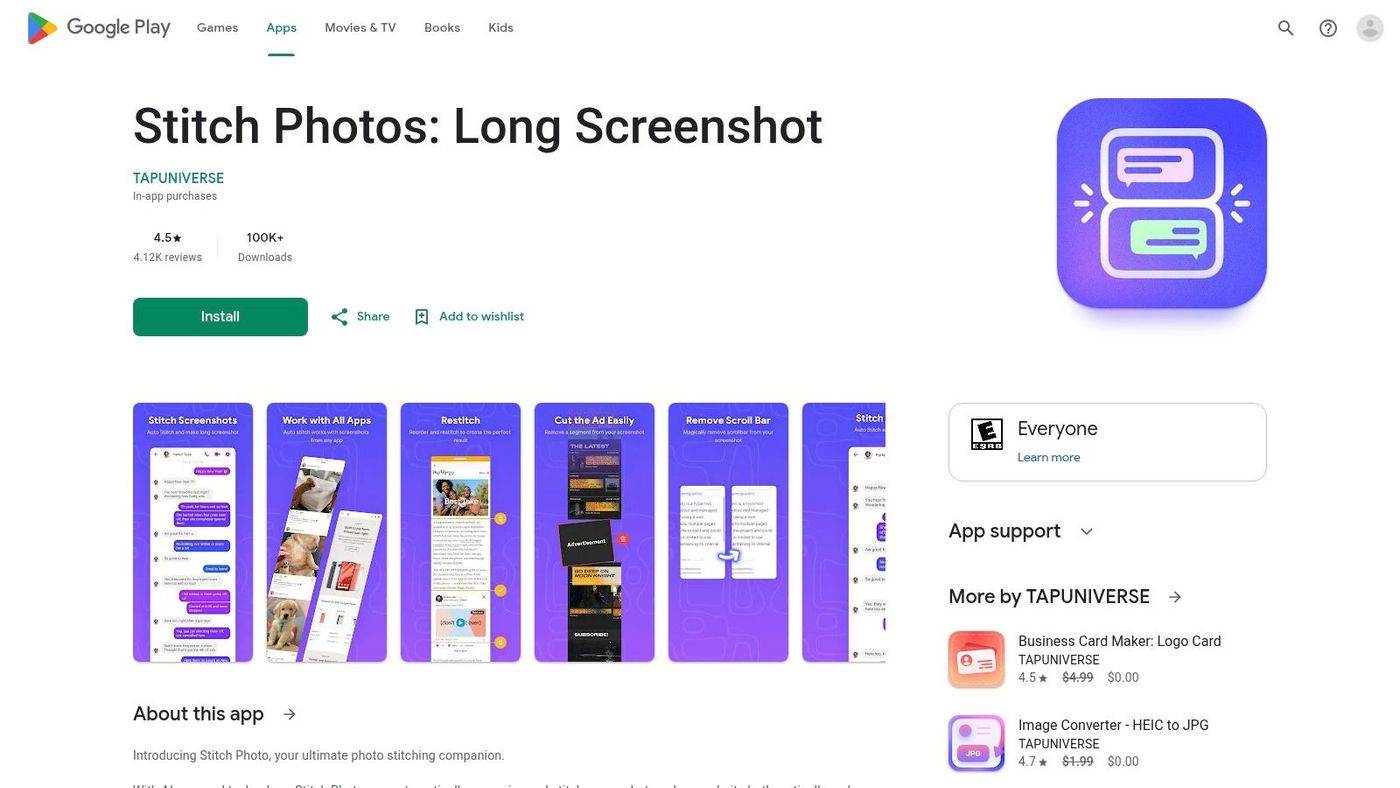
Stitch Photos solves a specific problem that general screenshot tools still don't handle consistently. Some apps block native scrolling capture. Some pages snap badly mid-scroll. Some conversations or receipts are easier to stitch manually from multiple captures than to fight with one automated tool.
This isn't your main screenshot app. It's the fix for when your main app fails.
Best companion app for long captures#
That distinction matters. You take the screenshots first, then bring them into Stitch Photos for assembly. For web pages, chats, order histories, and long settings sequences, that manual control can beat automated long-shot features that misalign or cut content awkwardly.
I'd recommend it for researchers, support staff, and anyone documenting processes. It's also useful for creators who want to combine multiple mobile screens into one narrative image before moving into design software.
- Use it for: Receipts, chat threads, long app flows, and web page captures.
- Don't use it as: Your only screenshot utility.
- Why it earns a spot: It covers the failure case other apps often leave unresolved.
You can try it from Stitch Photos Long Screenshot on Google Play.
Top 10 Free Android Screenshot Apps Comparison#
| App | Core features | UX / Quality (★) | Value / Price (💰) | Target (👥) | Unique Selling Point (✨/🏆) |
|---|---|---|---|---|---|
| Screen Master | Floating button/notification/shake, long-scroll, strong markup | ★★★★, fast & reliable | 💰 Free w/ ads; IAP to remove | 👥 Power annotators & quick editors | ✨ Robust on-device markup |
| Screenshot Easy | Many triggers (overlay, keys, widget), scrolling, simple recorder | ★★★½, configurable but dated UI | 💰 Free; IAP for advanced features | 👥 Users wanting trigger flexibility | ✨ Wide trigger options |
| Screenshot touch | Overlay/notification/shake, built-in recorder, quick edit | ★★★★, solid capture + recording | 💰 Free w/ ads; IAP extras | 👥 Creators needing both stills & video | ✨ Combined recorder + screenshot |
| AZ Screen Recorder | One-tap recording + screenshot, on-screen controls, editor | ★★★★★, trusted, smooth | 💰 Free; IAP for pro tools | 👥 Video creators who also need screenshots | 🏆 Full-featured video + editor |
| Screenshot (Splend Apps) | Overlay/notification capture, quick share, gallery | ★★★½, minimal & lightweight | 💰 Free; low footprint | 👥 Users who want minimal tooling | ✨ Very low resource use |
| Screenshot Quick | Tiny app, overlay button, instant preview & crop, exclude bars | ★★★★, very fast | 💰 Free w/ ads; IAP | 👥 Gamers & fast-capture users | ✨ Instant capture pipeline |
| Screenshot & Screen Recorder (MobileIdea) | Screenshot + recorder, camera preview, basic markup, history | ★★★½, handy combo | 💰 Free; some IAPs | 👥 Users needing basic all‑in‑one capture | ✨ Integrated history & simple edits |
| Screenshot Tile (No Root) | Quick Settings tile, one-tap, optional crop, open-source build | ★★★★, clean system integration | 💰 Free; F‑Droid (OSS) | 👥 Privacy-focused & power users | 🏆 Open-source Quick Settings workflow |
| Super Screenshot | System button capture, resize/text/doodle, save to SD | ★★★, simple & retro | 💰 Free w/ ads | 👥 Users on older devices or occasional editors | ✨ Works on legacy Android |
| Stitch Photos | Auto-detect & stitch screenshots, web capture, basic annotations | ★★★★, niche specialist | 💰 Free; IAP for pro features | 👥 People needing long/scroll stitching | 🏆 Purpose-built long/scroll stitcher |
From Capture to Conversion Creating Professional App Store Assets#
A founder grabs a few Android screenshots at 11 p.m., uploads them to Google Play, and wonders why the listing still looks weak. I see this often. The problem usually is not the product. It is that raw captures document the interface, while store assets need to sell the product story.
App Store and Google Play screenshots have a job to do. They need to explain the benefit of the app in seconds, show the right screen state, and stay visually consistent across a set. A plain capture from a screenshot app rarely does that by itself, even if the screen is accurate.
That gap matters more on Android because the capture step is messy. Some apps are built for annotation. Some are better for long screenshots or video. Some use overlay buttons or accessibility services, which is convenient but worth reviewing if privacy is a concern. If the screen includes customer data, financial details, internal dashboards, or unreleased features, capture permissions and local storage behavior matter just as much as editing speed.
A practical workflow looks like this:
- Capture the real product UI with the tool that matches the job.
- Review each image for notifications, personal data, test account clutter, and inconsistent states.
- Choose a sequence that leads with the app's main promise, then supports it with proof.
- Add headline copy, device framing, spacing, and branding for store placement.
- Export versions for different locales or store requirements if needed.
The first two steps belong to screenshot apps. The rest usually belong to a separate asset production process.
That distinction helps with tool selection. Screen Master is a strong fit if the team needs quick arrows, blur, and callouts before review. Screenshot Tile is better for people who want a cleaner, lower-friction capture flow with fewer extra layers on screen. Stitch Photos solves a different problem entirely. It helps when one feature spans a long page and a single viewport does not explain it well.
For store creative, teams usually need more structure than a screenshot utility provides. They need repeatable layouts, headline placement, localization, and multiple visual directions built from the same real UI. AppGrowKit is aimed at that stage of the workflow, where the goal shifts from saving a screen to producing publishable App Store and Google Play assets from approved captures.
The trade-off is simple. A free screenshot app for Android is excellent at getting evidence out of the device quickly. It is not usually the right place to finish marketing creative. Treat capture as production input, not the final deliverable, and the quality of your listing improves fast.
Stop reading. Start ranking.
AppGrowKit takes everything in this article and runs it for you: keyword research, live ranks, conversion-focused screenshots, and market intel. Free to start.